
NOTE: List Message function currently does not work with android devices
Create a list of items or options for customers
Quickly send a list of items to customers without having to type out each item individually. The template can be customized to include relevant information such as product images, descriptions, and prices.
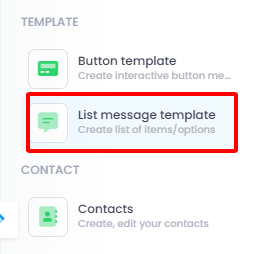
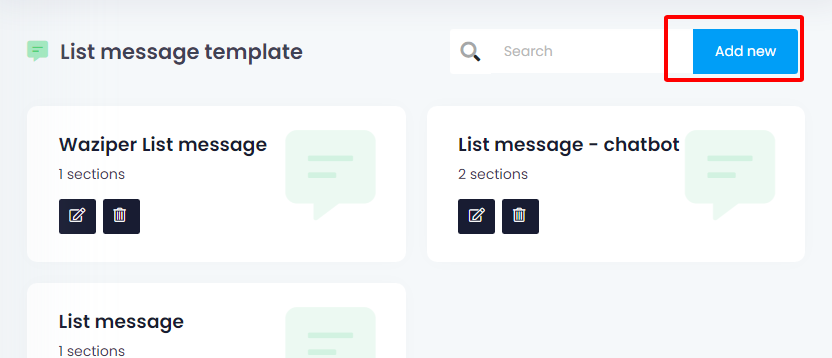
After you select List message template, click Add new:
The Functions of List message
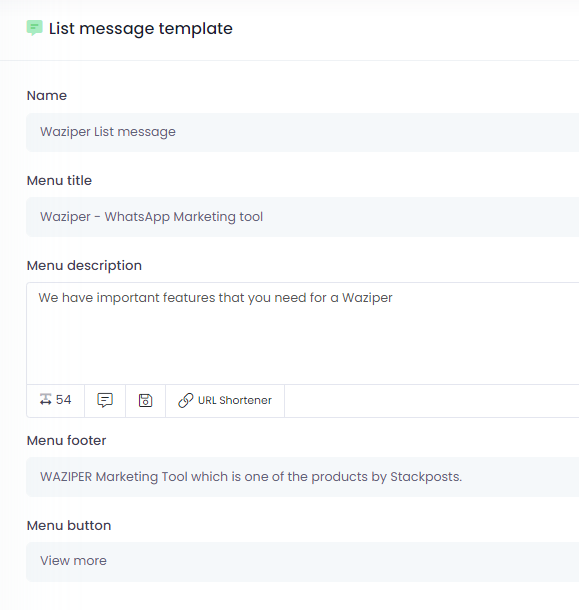
Menu description:
- Media file: Supported media types: Image, video, pdf… and all other file types, but mobile app will not support viewing or downloading these files.
- Caption: Enter what you want to send. Do you use a pre-made list of messages using the “Get Caption” function
- Get Caption: Click here to get Saved Captions to post
- Save Caption: Clicker to save new caption in your database
- You can use variables in a contact list using a structure: %name%, %param1%, %param2%,…Variable only works when you use button for function Bulk messaging
- You can random message by Spintax: {Hi|Hello|Hola}
- Use save caption function to save caption
- Support URL Shortener
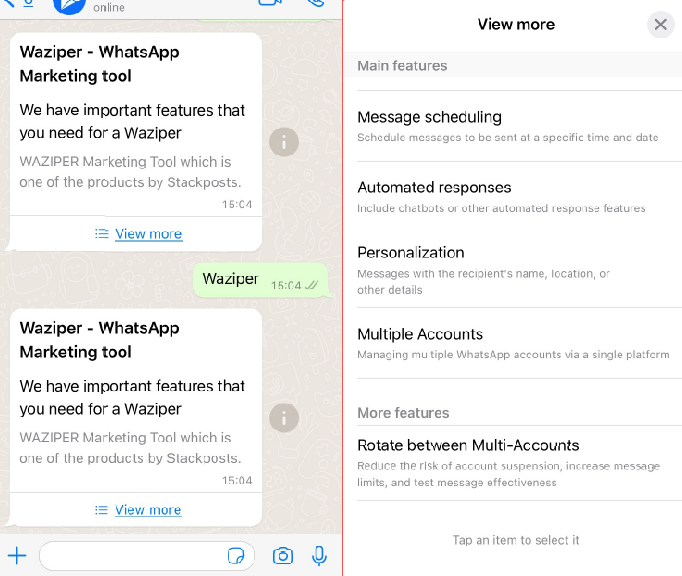
Section and Options: You can create multiple sections, each section you can create multiple options


